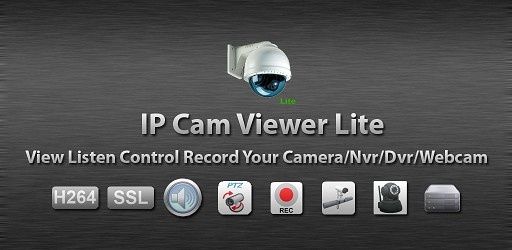
How to Set Up & Monitor Cameras with IP Cam Viewer Lite?
Security camera technology has become an essential part of both personal and professional safety. Whether you’re safeguarding your home, monitoring a store, or overseeing an office building, having a reliable way to view your camera feeds is critical.
One of the most versatile tools for this purpose is the IP Cam Viewer Lite app — a powerful camera viewing application that supports a huge range of devices and provides remote monitoring capabilities.
In this comprehensive guide, you’ll learn exactly how to set up and monitor your cameras using IP Cam Viewer Lite. We’ll cover installation, camera configuration, advanced settings, monitoring options, and expert tips to get the most from the app.
What Is IP Cam Viewer Lite?
IP Cam Viewer Lite is a mobile application that connects to IP cameras, digital video recorders (DVRs), and network video recorders (NVRs), allowing you to view live video feeds and control camera features remotely.
The app supports over 1,600 camera models from popular brands and works with multiple video streaming protocols like RTSP, ONVIF, and MMSH. It’s designed for both beginners and advanced users, offering an intuitive interface alongside powerful customization options.
Key Benefits of Using IP Cam Viewer Lite for Camera Monitoring
Before we get into setup, here’s why many people choose IP Cam Viewer Lite for security monitoring:
Broad Device Compatibility – Works with cameras from major brands like Hikvision, Dahua, Foscam, Axis, and more.
Real-Time Monitoring – View live feeds from anywhere with an internet connection.
PTZ Control – Move your camera’s pan, tilt, and zoom from within the app.
Secure Access – HTTPS encryption and password protection.
Camera Grouping – Organize multiple cameras for easier monitoring.
Free to Use – Lite version offers core features at no cost.
Step 1: Install IP Cam Viewer Lite
IP Cam Viewer Lite is available on multiple platforms, but regardless of your device, the basic installation process is similar.
Open Your App Store – Go to Google Play Store or Apple App Store.
Search for “IP Cam Viewer Lite” – Check that the developer is hit-mob.com to ensure you’re downloading the official app.
Download & Install – Tap the install button and wait for the download to finish.
Launch the App – Tap Open to start setting up your cameras.
Step 2: Gather Your Camera Information
Before you can connect your camera to IP Cam Viewer Lite, you’ll need:
Camera IP Address – This is the unique network address of your camera.
Port Number – Typically 80, 554, or brand-specific.
Username & Password – Set in your camera’s configuration menu.
Protocol Type – RTSP, HTTP, or ONVIF, depending on your camera.
You can find these details in your camera’s user manual or by logging into its web interface.
Step 3: Add Your First Camera
Once you have your camera details, it’s time to add it to IP Cam Viewer Lite.
1. Tap the “+” Icon
Found in the top-right corner of the app’s main screen.
2. Select “Add Camera”
You can also try Scan Camera to automatically detect compatible cameras on your network.
3. Choose Your Camera Brand & Model
Scroll through the list or use the search bar.
If your camera isn’t listed, try selecting a generic driver that matches the protocol.
4. Enter Camera Details
IP address or hostname.
Port number.
Username and password.
5. Test the Connection
Tap Test to ensure the camera feed loads.
If successful, tap Save.
Step 4: Organize Your Cameras
If you have multiple cameras, organizing them will make monitoring much easier.
Create Groups – For example: “Home”, “Office”, “Warehouse”.
Reorder Cameras – Drag and drop to prioritize important feeds.
Assign Icons – Use custom names and icons to identify cameras quickly.
Step 5: Monitor Your Cameras
Once your cameras are added, you can begin monitoring them.
Single Camera View
Tap a camera thumbnail to see the feed in full screen.
Multi-Camera View
View multiple feeds at once in grid layout.
Auto Sequence
Automatically cycle through selected cameras every few seconds.
PTZ Control
Swipe or pinch on the screen to move and zoom the camera if supported.
Step 6: Use Snapshots & Recordings
Even the Lite version allows you to capture images from your feeds.
Snapshot – Tap the camera icon to save an image.
Local Recording (Pro only) – Record video directly to your device.
Step 7: Secure Your App
For privacy and protection:
Set a Master Password – Prevents unauthorized access to your feeds.
Enable HTTPS – Encrypts your video stream.
Avoid Public Wi-Fi – Use a VPN if you must monitor over public networks.
Advanced Monitoring Tips
Adjust Video Quality
Lower resolution for slower connections; raise it for local viewing.
Use Dynamic DNS
Helps you connect remotely even if your home IP address changes.
Optimize PTZ Presets
Save preset positions for quick camera movement.
Schedule Monitoring
Use the app’s scheduling tools (Pro) to monitor at set times.
Troubleshooting Common Setup Problems
Issue: No video feed after setup
Fix: Check your IP address, port number, and protocol settings.
Issue: PTZ commands not working
Fix: Make sure your camera supports PTZ and correct driver is selected.
Issue: Connection drops frequently
Fix: Use wired internet for the camera or strengthen Wi-Fi signal.
When to Upgrade to IP Cam Viewer Pro
While the Lite version is powerful, the Pro version adds:
No ads
Two-way audio
Background audio streaming
Motion detection alerts
24/7 recording mode
Tasker integration
Chromecast support
If you require continuous recording or advanced automation, upgrading may be worth it.
Best Practices for Continuous Monitoring
Keep your device plugged in for long monitoring sessions.
Enable screen timeout settings that fit your needs.
Use an external display or tablet stand for easier viewing.
Regularly back up camera configurations.
Frequently Asked Questions
Q1: How many cameras can I add to IP Cam Viewer Lite?
A: You can add multiple cameras; performance depends on your device’s power.
Q2: Do I need a static IP for remote access?
A: It helps, but you can also use Dynamic DNS services.
Q3: Can I monitor cameras over mobile data?
A: Yes, as long as your cameras are accessible via the internet.
Q4: Does the Lite version support recording?
A: Only snapshots; continuous recording is available in Pro.
Final Thoughts
Setting up and monitoring your security cameras with IP Cam Viewer Lite is straightforward once you know the steps. With its wide compatibility, secure connections, and flexible viewing options, it’s a great choice for both home and business users.
Follow the setup process outlined above, organize your feeds, and take advantage of features like PTZ control and auto sequencing to create a powerful, portable security monitoring solution.
Updates