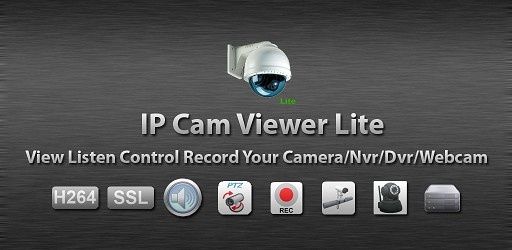
IP Cam Viewer Lite – Download Remote Camera Monitoring App
If you want to remotely monitor and control your IP cameras, DVRs, NVRs, or webcams from anywhere in the world, the IP Cam Viewer Lite app is one of the most powerful, reliable, and versatile tools available. Trusted by security professionals, homeowners, and tech enthusiasts, this award-winning app combines wide device support with advanced features to give you full control over your surveillance system from your smartphone or tablet.
In this comprehensive guide, we’ll explore everything you need to know about IP Cam Viewer Lite, from features and benefits to setup instructions, usage tips, and expert advice for maximizing your security monitoring experience.
What Is IP Cam Viewer Lite?
IP Cam Viewer Lite is a free mobile application designed to connect to and control a wide range of network cameras, digital video recorders (DVRs), network video recorders (NVRs), and even computer webcams. It supports over 1,600 devices from various brands and protocols, making it one of the most versatile camera-viewing apps on the market.
Originally recognized as the Best Software in the Utilities Category in 2011, it has evolved to keep up with the latest video streaming standards, security protocols, and user interface improvements.
Whether you are a home user wanting to check your baby monitor, a business owner managing a store’s security cameras, or a tech professional working with IP surveillance systems, IP Cam Viewer Lite can be your go-to mobile solution.
Key Features of IP Cam Viewer Lite
Here’s what makes this app stand out in the crowded surveillance software market:
1. Extensive Device Support
Supports 1,600+ devices including NVRs, DVRs, and webcams.
Compatible with major brands like Hikvision, Dahua, Axis, Foscam, Amcrest, Lorex, Swann, and more.
Full device support list available on the developer’s website.
2. Multiple Streaming Protocols
RTSP, ONVIF, MMSH, and others.
Compatible with MPEG4, H.265, H.264, and MJPEG video codecs.
Smooth, low-latency streaming for real-time monitoring.
3. PTZ Camera Control
Control Pan, Tilt, and Zoom functions directly from your phone.
Access other device functions like relay control and preset positions.
4. Security & Privacy
SSL/HTTPS encrypted connections.
App-wide password protection for preventing unauthorized access.
No mandatory cloud storage — you control your own data.
5. Camera Grouping & Auto Sequence
Group cameras by location or purpose.
Set up auto sequencing to cycle through multiple cameras automatically.
6. Export & Import Settings
Save and transfer your camera configurations via SD card, email, or Dropbox.
Easy backup and restore when switching devices.
7. Widgets & Shortcuts
Home screen and lock screen widgets for quick viewing.
Cross-platform support across your mobile devices.
IP Cam Viewer Pro Upgrade Benefits
While the Lite version is powerful on its own, upgrading to IP Cam Viewer Pro unlocks several advanced features:
No ads for a cleaner experience.
Two-way audio for supported devices — talk and listen remotely.
Background audio streaming.
In-app motion detection alerts.
24/7 recording mode for all cameras.
Embedded web server for remote control and Tasker integration.
Chromecast and Android Wear support.
Why Choose IP Cam Viewer Lite?
Choosing the right IP camera app comes down to reliability, compatibility, and security. IP Cam Viewer Lite excels in all three areas:
Broad Compatibility – Works with older and newer camera models.
Secure Connections – No forced cloud uploads; full control of your video streams.
User-Friendly – Even beginners can set it up in minutes.
Expandable – Upgrade to Pro without losing your settings.
Offline Options – Store settings and backups locally.
How to Download and Install IP Cam Viewer Lite
Step 1: Download the App
Android Users: Search for “IP Cam Viewer Lite” in the Google Play Store or download directly from the developer’s website.
iOS Users: Search for “IP Cam Viewer” in the Apple App Store.
Step 2: Install and Launch
Follow your device’s standard installation process.
Open the app — you’ll be greeted with the camera list screen.
How to Add and Configure a Camera
Adding your first camera is quick and straightforward.
Step 1: Tap the “+” Button
Located in the top toolbar.
Choose "Add Camera" or "Scan Camera".
Step 2: Select Your Camera Model
Browse or search for your device from the 1,600+ supported models.
If unsure, try the Scan Camera feature to auto-detect compatible settings.
Step 3: Enter Connection Details
IP address or hostname.
Port number (default varies by brand).
Username & password (set in your camera/DVR settings).
Step 4: Test and Save
Tap "Test" to verify the connection.
If video appears, tap "Save".
Using IP Cam Viewer Lite: Essential Functions
Once your cameras are set up, here’s how to use the app effectively:
1. Live View
Tap a camera thumbnail to view in full screen.
Use pinch-to-zoom or swipe to control PTZ cameras.
2. Camera Grouping
Organize multiple cameras into groups (e.g., Home, Office, Warehouse).
Switch between groups with a swipe.
3. Auto Sequence Mode
Automatically cycle through your cameras every few seconds.
Ideal for security guards or multi-location monitoring.
4. Recording and Snapshots
Take snapshots from the live view.
Lite version supports basic snapshot saving; Pro version adds continuous recording.
5. PTZ and Device Control
Control pan/tilt/zoom directly from the touch interface.
Trigger camera relays, lights, or alarms.
Tips for Optimal Performance
Use Wired Connections where possible for better stability.
Lower Video Resolution if you experience lag.
Enable HTTPS for secure streaming over the internet.
Backup Configurations before updating the app or switching phones.
Check Router Port Forwarding for remote access outside your home network.
Common Troubleshooting Steps
Issue: Video not loading
Solution: Check IP address, port number, and login credentials. Try different streaming protocols.
Issue: PTZ not working
Solution: Ensure your camera model supports PTZ and the correct driver is selected.
Issue: App crashes or freezes
Solution: Update to the latest app version and clear cache.
Issue: Remote access fails
Solution: Configure port forwarding or use a dynamic DNS service.
Advanced Features for Power Users
Embedded Web Server (Pro only) – Control the app remotely via browser.
Tasker Integration – Automate camera actions based on events.
Transcoding/Proxy – Adjust video streams for slower connections.
Security Best Practices
Always change default camera passwords.
Keep camera firmware updated.
Use strong, unique passwords for the app.
Avoid public Wi-Fi for remote viewing unless using VPN.
Final Thoughts
The IP Cam Viewer Lite app is a powerful tool for anyone looking to remotely monitor and control their surveillance cameras. With wide device compatibility, robust features, and an easy-to-use interface, it’s an excellent choice for beginners and advanced users alike. Upgrade to the Pro version for added features like two-way audio, motion detection, and continuous recording.
If you value security, flexibility, and control, IP Cam Viewer Lite is a must-try app for your IP camera monitoring needs.
Updates