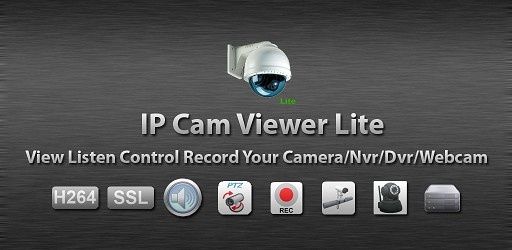
IP Cam Viewer Lite for iOS – Download & Setup on iPhone & iPad
Security monitoring has moved far beyond bulky desktop systems. Today, you can watch live feeds from your IP cameras, DVRs, or NVRs right from your pocket using an iPhone or iPad. Among the many options available, IP Cam Viewer Lite stands out for its wide device compatibility, security-focused features, and ease of use.
In this guide, we’ll explore how to download and use IP Cam Viewer Lite on iOS devices, including setup instructions, tips for optimizing performance, and troubleshooting common issues. Whether you’re a home user or managing multiple business cameras, this app can transform your iOS device into a portable security control center.
What Is IP Cam Viewer Lite for iOS?
IP Cam Viewer Lite is a mobile application that allows you to connect to and view a wide range of IP cameras, network video recorders (NVRs), and digital video recorders (DVRs) from your iPhone or iPad.
Unlike some camera apps that only support a handful of brands, IP Cam Viewer Lite works with over 1,600 devices from manufacturers like Hikvision, Dahua, Foscam, Amcrest, Axis, and many others. It supports popular streaming protocols such as RTSP, ONVIF, and MMSH, along with video codecs including H.265, H.264, MPEG4, and MJPEG.
Why Choose IP Cam Viewer Lite for Your iPhone or iPad?
Here’s why many iOS users prefer IP Cam Viewer Lite over other surveillance apps:
Broad Compatibility – Works with both older and newer camera models.
Remote Access – Monitor your property from anywhere with an internet connection.
Secure Streaming – HTTPS encryption keeps your video feed safe from unauthorized access.
PTZ Control – Adjust pan, tilt, and zoom right from your device.
User-Friendly Interface – Simple to set up and navigate, even for beginners.
Free to Use – The Lite version is ad-supported but still highly functional.
IP Cam Viewer Lite vs. IP Cam Viewer Pro on iOS
Before downloading, it’s important to know the difference between the Lite and Pro versions:
| Feature | Lite Version | Pro Version |
| -------------------------------- | ------------ | ----------- |
| Ads | Yes | No |
| Two-Way Audio | No | Yes |
| Background Audio | No | Yes |
| Motion Detection | No | Yes |
| 24/7 Recording | No | Yes |
| Chromecast & Apple Watch Support | No | Yes |
| Embedded Web Server | No | Yes |
If you only need to view your cameras occasionally, the Lite version should be enough. But if you want advanced features like two-way audio and continuous recording, you may want to upgrade to the Pro version.
How to Download IP Cam Viewer Lite on iOS
Downloading the app is straightforward through the Apple App Store.
Step 1: Open the App Store
On your iPhone or iPad, tap the App Store icon.
Step 2: Search for IP Cam Viewer Lite
Type “IP Cam Viewer Lite” in the search bar.
Make sure you select the official app from hit-mob.com.
Step 3: Install the App
Tap Get or the cloud icon to start the download.
If prompted, enter your Apple ID password or use Face ID/Touch ID.
Step 4: Launch the App
Once installed, tap Open to start using it.
How to Set Up IP Cam Viewer Lite on iPhone & iPad
After installation, you’ll need to connect your first camera.
Step 1: Add a Camera
Open the app.
Tap the “+” icon to add a new camera.
Step 2: Choose Your Camera Model
Browse or search from the list of supported devices.
If you’re unsure, use the Scan Camera option for auto-detection.
Step 3: Enter Connection Details
IP Address or Hostname
Port Number
Username and Password (from your camera settings)
Step 4: Test and Save
Tap Test to verify the connection.
Once you see the live feed, tap Save.
Key Features You Can Use on iOS
Live View & Multi-Camera Mode – Watch one or multiple cameras at once.
PTZ Control – Swipe or pinch to move and zoom the camera.
Snapshots – Take still images of the live feed.
Camera Grouping – Organize cameras by location or purpose.
Auto Sequence – Automatically cycle through selected cameras.
Secure Access – Lock the app with a password for extra privacy.
Tips to Get the Best Performance on iPhone & iPad
Use Wi-Fi When Possible – For faster and more stable streaming.
Adjust Video Quality – Lower resolution for remote viewing to save bandwidth.
Enable HTTPS – For encrypted streaming when accessing cameras remotely.
Keep the App Updated – Updates often include new camera support and bug fixes.
Close Background Apps – Improves performance when viewing multiple feeds.
Troubleshooting Common Issues on iOS
Problem: Camera feed not loading
Solution: Double-check IP, port, and login details. Try switching between RTSP and ONVIF protocols.
Problem: PTZ controls not responding
Solution: Make sure your camera supports PTZ and you’ve selected the correct driver.
Problem: App crashes or freezes
Solution: Restart your iPhone/iPad, ensure you have enough storage, and update the app.
Problem: No remote access outside home network
Solution: Configure port forwarding on your router or use a dynamic DNS service.
Security Best Practices for iOS Users
Change Default Passwords – Never use factory-set credentials.
Update Firmware – Keep your cameras secure from vulnerabilities.
Use a VPN – For an extra layer of security when accessing cameras remotely.
Limit Shared Access – Only give viewing permissions to trusted individuals.
Alternative iOS Apps to Consider
While IP Cam Viewer Lite is excellent, you may also want to explore:
TinyCam Monitor – Great for multi-camera setups.
OWLR IP Camera Viewer – Focused on easy setup.
AtHome Camera – Includes motion detection alerts.
Frequently Asked Questions (FAQ)
Q1: Is IP Cam Viewer Lite free on iOS?
Yes, the Lite version is free but contains ads. You can upgrade to Pro for more features.
Q2: Can I use it with my iPad?
Yes, the app works on both iPhones and iPads.
Q3: Does it support Apple Watch?
Only the Pro version includes Apple Watch support.
Q4: How many cameras can I add?
There’s no strict limit, but performance depends on your device’s capability.
Q5: Can I view cameras without Wi-Fi?
Yes, as long as your cameras are accessible over mobile data and your network is configured for remote access.
Final Thoughts
IP Cam Viewer Lite for iOS is a powerful, easy-to-use solution for remote camera monitoring. Whether you want to keep an eye on your home, office, or other properties, it offers the flexibility and security you need — all from your iPhone or iPad.
With broad camera compatibility, secure connections, and an intuitive interface, it’s an excellent choice for both beginners and advanced users. Follow the steps in this guide to download, install, and set up your cameras, and you’ll have your security system right at your fingertips.
Updates